How a Florida eviction runs — start to finish.
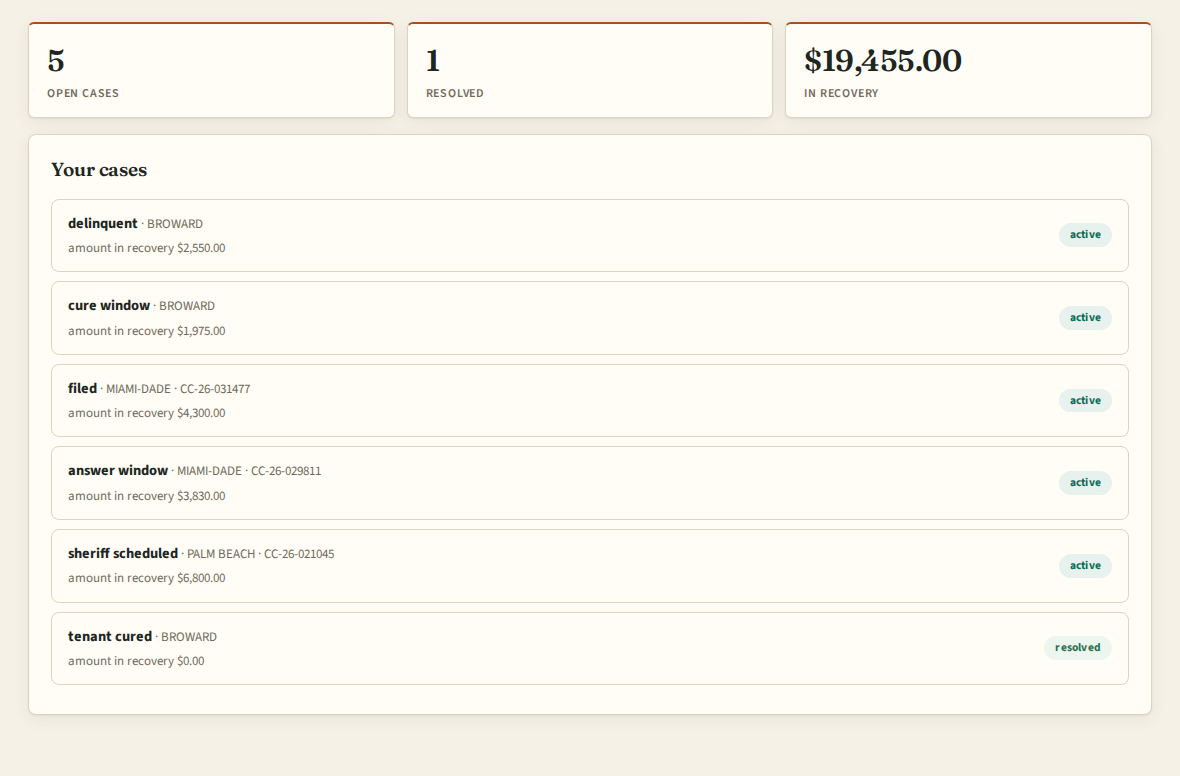
You submit one delinquency. A licensed Florida attorney and the DoorsBack software do everything after that, and your dashboard shows exactly where the case stands and who has the ball. This guide walks through the whole process so nothing is a surprise.
How DoorsBack works
DoorsBack is a done-for-you service, not a self-service filing tool. There are three roles on every case, and they never blur:
- You The property manager. Your one job is intake — submit the delinquent tenant, confirm the amounts, upload the lease and ledger. After that you watch and approve nothing.
- The attorney A licensed Florida attorney reviews, approves, and signs every notice and court filing, and appears for your case. Legal questions go to them directly.
- The software DoorsBack prepares documents from your verified data, runs the statutory deadline clocks by county, keeps the audit log, and shows you the live timeline.
Your 5 minutes
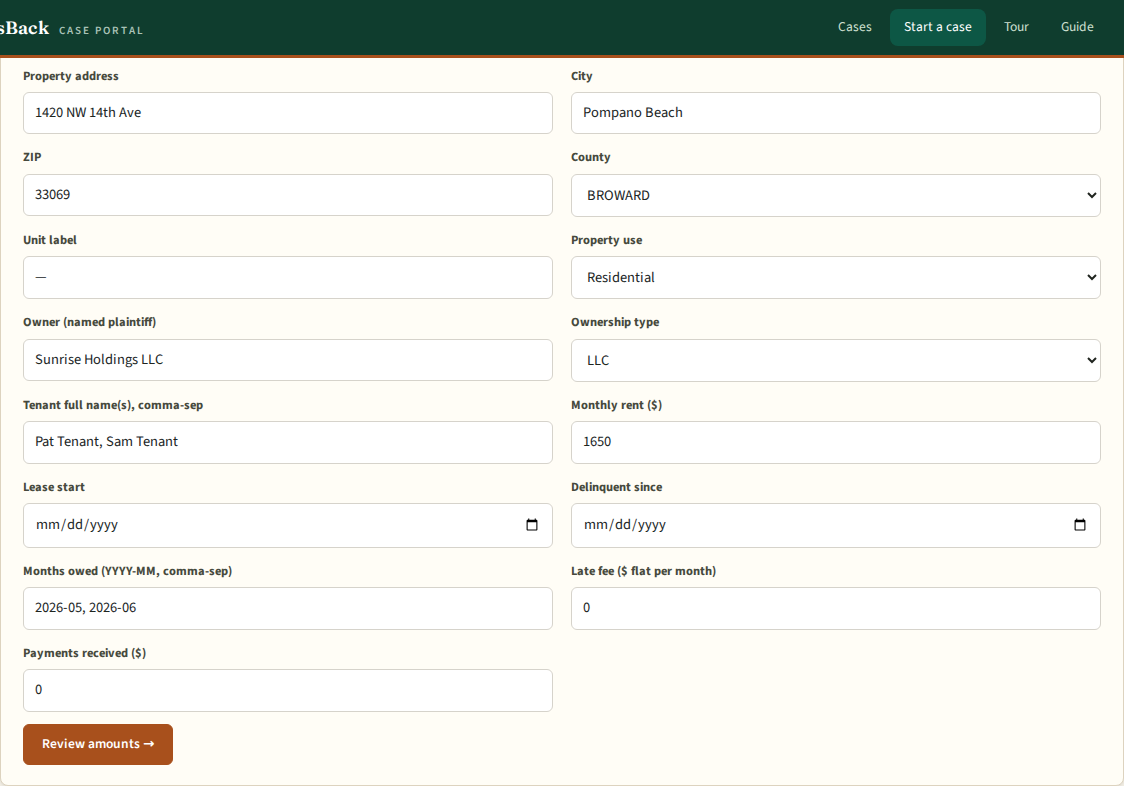
Intake is the only thing DoorsBack asks of you. From the Case Portal, open Start a case and provide:
Property & owner
Address, county, unit, and the named plaintiff (the owning LLC, corporation, or individual) with its ownership type. The ownership type decides whether attorney signature is required.
Tenant & lease
Tenant name(s), monthly rent, lease start, and late-fee terms. These come straight off the lease.
The delinquency
Which months are owed, the delinquent-since date, and any payments received. DoorsBack builds an itemized amounts worksheet from this.
Confirm the worksheet
Review the rent + late-fee total line by line and confirm it's right. Confirming the worksheet is what opens the case. Upload the lease and ledger and you're done.
That's the entire job. The attorney and the software take it from here.
The 8 phases
Every case moves through the same eight phases, in order. The system checks the prerequisites for each phase before the case can advance, so a step never gets skipped. The chip on the right of each phase is who has the ball.
You submit the delinquency and confirm the amounts worksheet. The case opens.
The attorney reviews, approves, and signs the 3-Day Notice. It is served on the tenant and the statutory cure period begins, computed against the county's court calendar.
If the cure period expires unpaid, the attorney approves the Complaint and Summons and files them with the county Clerk. A court case number is assigned.
The sheriff or a certified process server serves the Summons and Complaint on the tenant. Service starts the tenant's response clock — 5 business days in Florida.
The tenant may answer, may deposit rent into the court registry, or may do nothing. DoorsBack tracks the window. No response usually clears the path to default.
The attorney moves for judgment — by default if there was no response, or after a hearing if the tenant contested. The court enters a Final Judgment for Possession.
The Clerk issues the Writ of Possession to the sheriff. The sheriff posts a 24-hour notice, then executes the lockout.
Possession is returned to the owner and the case closes with a complete, audited record from first notice to lockout.
Documents & the attorney gate
DoorsBack prepares every court document from your verified intake data — the 3-Day Notice, Complaint, Summons, motions, Final Judgment, and Writ of Possession among them. You never draft or file anything yourself.
The rule that protects you is the attorney gate: the software will not move a document forward until the attorney on your case has reviewed, approved, and (where required) signed it. A draft that's rejected is voided, not filed. Every version, approval, and signature is recorded with a content hash in the audit log.
| Document | Prepared from | Released when |
|---|---|---|
| 3-Day Notice | Confirmed amounts worksheet | Attorney approves & signs |
| Complaint & Summons | Case + property + parties | Cure period expires, attorney approves |
| Motion for Default / Judgment | Service + response status | Response window closes, attorney approves |
| Writ of Possession | Entered judgment | Clerk issues to sheriff |
The live timeline
Open any case in the portal and you get a single screen: the current status, who has the ball, the next step with its deadline, the full event timeline, and the document vault. Every date cites its statutory or court-calendar basis.
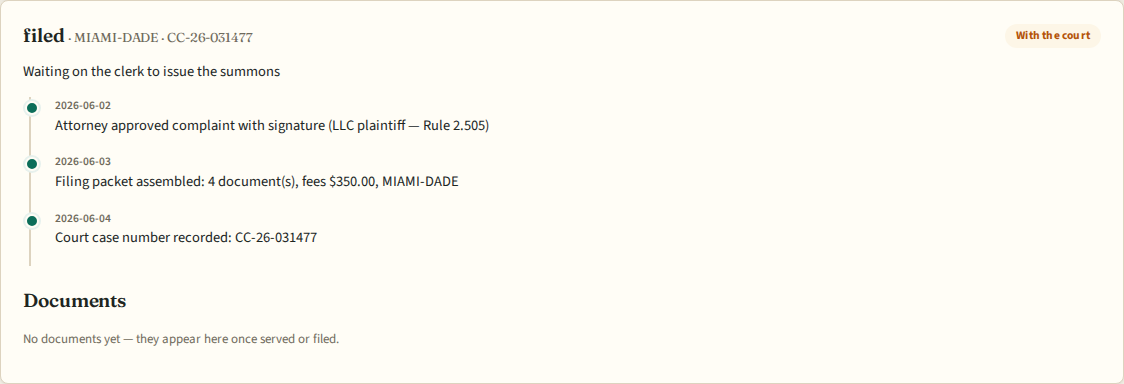
This is the screen to forward to your owner. When they ask "what happened and when," you don't write an update — you send the timeline. You also get an email on every material step, so you rarely need to log in unless something needs you.
When we need you
DoorsBack runs on its own most of the time. It only pings you when a case genuinely needs your input:
- The tenant pays or partially pays — you decide whether to accept and cure, or proceed.
- The tenant contests and a hearing is set — the attorney handles it; you may be asked for documents or a witness.
- Intake data needs a correction before the attorney can approve a filing.
- A settlement or dismissal decision is yours to make.
Anything in this state is flagged on your dashboard and in your email. Everything else just advances.
Costs & pricing
Flat and known before you start — no hourly billing.
| What | Price | Notes |
|---|---|---|
| Platform | $199 / month per company | Unlimited properties and users, dashboard, vault, audit trail, email updates. |
| Per case (attorney-handled) | $495–$795 flat | By case type. Uncontested non-payment is $495. |
| Court costs | ~$300–$400 at cost | Filing fee, summons issuance, sheriff service — passed through with itemized receipts. |
| Contested litigation | Quoted first | The attorney quotes any additional work before doing it. |
Introductory pilot pricing is locked for pilot partners.
FAQ
Do I ever file anything myself?
No. You do intake. The attorney approves and files everything; the software prepares it and tracks the deadlines.
What if the tenant pays after the notice?
DoorsBack flags the payment and asks you whether to accept and cure the case or proceed. The decision is yours.
What if the tenant fights it?
The case moves into a contested track. The attorney on your case handles the hearing; you may be asked for documents or a witness. Contested work is quoted before it's done.
How do I update my owner?
Send them the case timeline — one screen showing every step, date, and document. You also get email updates on every material step.
Which counties do you cover?
Launching in Broward, Miami-Dade, and Palm Beach. Deadline calendars are configured per county.
Is DoorsBack a law firm?
No. DoorsBack is software and service coordination. Legal services are provided by an independent licensed Florida attorney under a separate engagement. The dashboard reports status and process, not legal advice.